SolidWorks UI + LLM Tutorial
This tutorial is for mechanical engineers who are new to MCP tools and want a repeatable way to drive SolidWorks from an LLM while still using the SolidWorks UI. This is meant to help take the repetition out of a workflow and optimize and engineer's time on the design and things that matter, not dull repetitive tasks.
What This Tutorial Covers
- How to prepare the SolidWorks UI for reliable automation.
- How to write prompts that produce deterministic tool calls.
- A simple end-to-end workflow: create part, sketch, feature, save, and export.
- How to recover quickly when a command fails.
1. Prepare SolidWorks UI for Automation
- Start SolidWorks before starting your MCP client.
- Close extra documents so only one target model is open.
- Keep standard reference planes visible: - Front Plane - Top Plane - Right Plane
- Set units at the start of each modeling session and keep them consistent.
- Avoid manual clicks while a multi-step prompt is running.
Why this matters: MCP tools execute deterministically when model context is stable. Most failures come from wrong active document, hidden references, or mixed units.
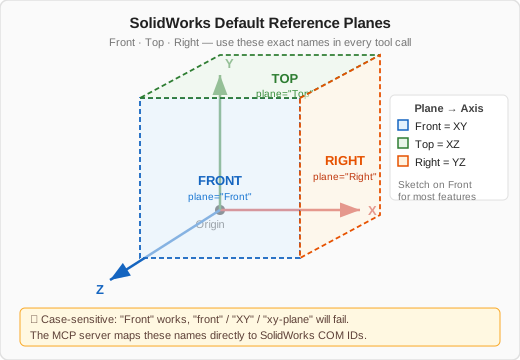
Plane names are case-sensitive
"Front" works. "front", "XY", "xy-plane" all fail silently at the COM level.
2. Prompting Pattern That Works
Use this pattern for each request:
- Goal: one sentence of desired CAD result.
- Inputs: dimensions, units, material, and output path.
- Constraints: no assumptions, ask before improvising.
- Verification: ask the model to report each tool call and result.
Example prompt template:
Goal: Create a rectangular mounting plate in SolidWorks.
Inputs:
- Units: mm
- Plate size: 120 x 80
- Thickness: 8
- Hole diameter: 10
- Hole pattern: 4 holes, 10 mm from each corner
- Save path: C:\\Temp\\mcp_demo\\mounting_plate.sldprt
Constraints:
- Use Front Plane for sketch.
- Do not infer missing values.
- Stop and ask if any tool call fails.
Verification:
- After each tool call, print the tool name and status.
- At the end, confirm file exists and summarize model dimensions.
3. Simple End-to-End Workflow
Use this exact sequence in your prompts for predictable behavior:
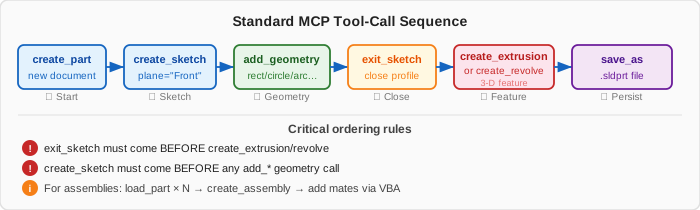
- Create a part document.
- Create a sketch on Front Plane.
- Add primitive geometry (line/rectangle/circle).
- Exit sketch.
- Create feature (extrude/revolve).
- Save as native SolidWorks file.
- Export neutral format if needed (STEP/IGES/STL).
Minimal workflow prompt:
Create a new part in mm, sketch a 60 mm diameter circle on Front Plane, extrude 12 mm,
save as C:\\Temp\\mcp_demo\\disk_60x12.sldprt, then export STEP to
C:\\Temp\\mcp_demo\\disk_60x12.step.
Return each tool call status in a numbered list.
4. Tooling Capabilities You Can Demonstrate
For non-MCP users, this is a good beginner demo sequence:
- Modeling: create part, create assembly, close/open model.
- Sketching: create sketch, add line/circle/rectangle, apply constraints.
- Drawing: create drawing, add views, add dimensions.
- Analysis: mass properties, interference checks.
- Export: STEP, IGES, STL, PDF.
- Automation: batch operations and workflow scripts.
- VBA generation: macro generation for complex operations.
5. Failure Recovery Prompt
When a step fails, use this:
A tool call failed. Do not continue with the next step.
1) Show the exact failing tool and error.
2) Propose one minimal retry with changed parameters.
3) Execute only that retry.
4) If retry fails, stop and ask me for direction.
6. Best Practices for Determinism
- Use absolute file paths for open/save/export.
- Include units in every geometric instruction.
- Ask for one operation per line in multi-step prompts.
- Prefer simple sketches before complex features.
- Ask the LLM to echo model state after each major step.
- Keep a cleanup step to remove generated test files.
7. Recommended Demo Prompt Set
Use these prompts in order during a live demo:
- Connectivity check
- Part creation and save
- Re-open and verify
- Assembly creation
- Cleanup request
8. Deterministic Prompting Playbook
For reliable UI-driven automation, use this sequence in every longer run:
- Ask for a connection/health check.
- Ask for active-document confirmation.
- Run one guarded operation block.
- Validate outputs (file path, doc type, major dimensions).
- Continue only after validation succeeds.
Guarded operation block template:
Execute these steps in order and stop on first failure.
After each step, return tool name, status, and key outputs.
Do not continue if any tool returns error.
If a step fails:
- Retry once with minimal parameter changes.
- If retry fails, stop and request user direction.
This minimizes accidental drift from the intended CAD workflow and prevents compounding failures.
9. Additional Prompt Examples
For a full copy/paste prompt cookbook, see:
- user-guide/prompting-best-practices.md