Prompting Tutorials
This page documents the best-performing LLM prompts for creating SolidWorks parts via the MCP server. Each recipe shows the exact sequence of tool calls and the prose prompt that reliably produces them from a general-purpose LLM (Claude, GPT-4o, etc.).
Standard Tool-Call Sequence
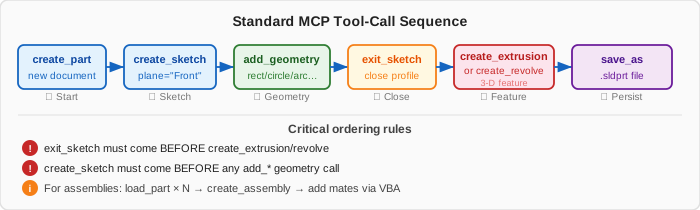
Every part creation follows the same six-step pipeline regardless of shape complexity:
Prompt Engineering Principles
1. Prefer specific geometry over adjectives
❌ "Make a wide, flat part"
✅ "Create a sketch rectangle x1=-50, y1=-25, x2=50, y2=25 then extrude 5 mm"
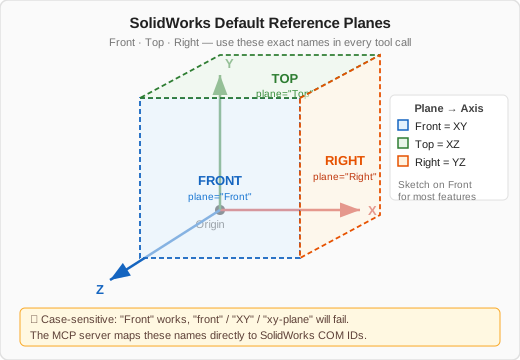
2. Use the correct plane names
SolidWorks default planes are exactly: "Front", "Top", "Right". Any variation ("XY", "front") will fail.
3. Emit tool calls in dependency order
A create_extrusion will fail if the active sketch hasn't been closed with exit_sketch first.
Correct order:
4. Always specify mm not m
All SolidWorks API lengths are in metres by default. The MCP server converts values > 0.5 automatically (see input_compat.py), but the safest approach is to always check:
5. Add set_dimension to parametrize your model
After creating features, lock dimensions symbolically so the model can be driven by parameters later:
6. Read before write on existing parts
When editing an existing file, first request model context so the LLM does not guess feature/config names.
Recommended read sequence:
Use this as a preface in your prompt:
Before changing geometry, open the part and return model info, configurations, and features.
Then propose the smallest edit plan and wait for confirmation.
7. Force bounded outputs for long sessions
Large responses can consume context and reduce reliability. Add an explicit response budget:
8. Make failure handling explicit
Use a deterministic recovery contract to avoid speculative retries:
If a tool fails, stop immediately and return:
1) failing tool
2) exact error
3) one minimal retry option
Do not continue remaining steps.
Recipe 1 — Simple Block (30-second exercise)
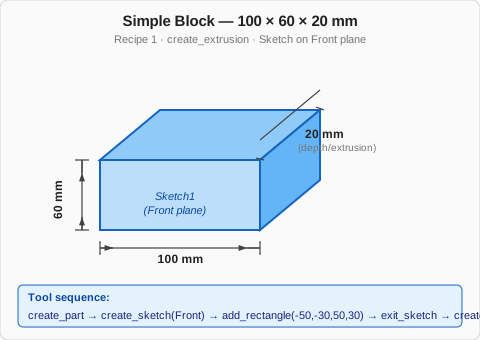
Goal: A 100×60×20 mm rectangular block on the Front plane.
System prompt fragment
You are operating a SolidWorks MCP server. When creating parts, always call tools in this order:
create_part → create_sketch → [add geometry] → exit_sketch → create_extrusion → save_as.
All dimensions are millimeters. Use exact plane names: Front, Top, Right.
User prompt
Expected tool call sequence
[
  {"tool": "create_part",     "args": {"name": "Simple Block"}},
  {"tool": "create_sketch",   "args": {"plane": "Front"}},
  {"tool": "add_rectangle",   "args": {"x1": -50.0, "y1": -30.0, "x2": 50.0, "y2": 30.0}},
  {"tool": "exit_sketch",     "args": {}},
  {"tool": "create_extrusion","args": {"sketch_name": "Sketch1", "depth": 20.0}},
  {"tool": "save_as",         "args": {"file_path": "C:\\Temp\\Simple Block.sldprt"}}
]
Recipe 2 — Cylinder (Revolve)
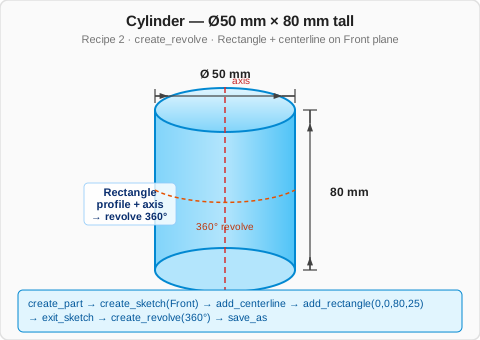
Goal: A solid cylinder Ø50 mm × 80 mm.
User prompt
Expected tool call sequence
[
  {"tool": "create_part",   "args": {"name": "Cylinder"}},
  {"tool": "create_sketch", "args": {"plane": "Front"}},
  {"tool": "add_centerline","args": {"x1": 0.0, "y1": 0.0, "x2": 80.0, "y2": 0.0}},
  {"tool": "add_rectangle", "args": {"x1": 0.0, "y1": 0.0, "x2": 80.0, "y2": 25.0}},
  {"tool": "exit_sketch",   "args": {}},
  {"tool": "create_revolve","args": {"sketch_name": "Sketch1", "axis_entity": "Line1", "angle": 360.0}},
  {"tool": "save_as",       "args": {"file_path": "C:\\Temp\\Cylinder.sldprt"}}
]
Tip
The centerline must be on the same sketch as the profile. Line1 refers to the first line added, which is the centerline.
Recipe 3 — Baseball Bat
Goal: Faithful recreation of Baseball Bat.SLDPRT.

User prompt
Open the original Baseball Bat sample first and classify it before planning the rebuild.

Run:
- get_model_info()
- list_features(include_suppressed=True)
- get_mass_properties()
- classify_feature_tree(include_suppressed=True)

If the classifier recommends a direct revolve workflow, continue with a rebuild.
Then recreate a baseball bat approximately 830 mm long with:
- A 34 mm diameter knob at one end
- A 22 mm diameter handle for the first 180 mm
- A gentle taper out to a 70 mm barrel for the remaining length
- A hemispherical dome at the barrel end
Use a revolve around the horizontal axis.
Name it "Baseball Bat Recreation".
Expected tool call sequence
[
  {"tool": "get_model_info",   "args": {}},
  {"tool": "list_features",    "args": {"include_suppressed": true}},
  {"tool": "get_mass_properties","args": {}},
  {"tool": "classify_feature_tree","args": {"include_suppressed": true}},
  {"tool": "create_part",    "args": {"name": "Baseball Bat Recreation"}},
  {"tool": "create_sketch",  "args": {"plane": "Right"}},
  {"tool": "add_centerline", "args": {"x1": 0.0, "y1": 0.0, "x2": 830.0, "y2": 0.0}},
  {"tool": "add_arc",        "args": {"center_x": 0.0,   "center_y": 0.0, "start_x": 0.0,  "start_y": 17.0, "end_x": 17.0, "end_y": 0.0}},
  {"tool": "add_line",       "args": {"x1": 17.0, "y1": 17.0, "x2": 17.0, "y2": 22.0}},
  {"tool": "add_line",       "args": {"x1": 17.0, "y1": 22.0, "x2": 680.0, "y2": 35.0}},
  {"tool": "add_arc",        "args": {"center_x": 680.0, "center_y": 0.0, "start_x": 680.0, "start_y": 35.0, "end_x": 830.0, "end_y": 0.0}},
  {"tool": "exit_sketch",    "args": {}},
  {"tool": "create_revolve", "args": {"sketch_name": "Sketch1", "axis_entity": "Line1", "angle": 360.0}},
  {"tool": "save_as",        "args": {"file_path": "C:\\Temp\\Baseball Bat Recreation.sldprt"}}
]
Why the classifier step is first
This is the lightweight proof that inspect-classify-delegate works on a simpler family. A baseball bat should route cleanly to direct-mcp-revolve, unlike the Paper Airplane sheet metal case.
Recipe 4 — Box with Counterbore Holes
Goal: 80×60×15 mm box with four M6 counterbore holes at corners (Ø6 through, Ø10×5 cbore).
User prompt
Create a rectangular plate 80 × 60 × 15 mm with four M6 counterbore mounting holes.
Holes are centred 8 mm from each corner. Through bore Ø6 mm, counterbore Ø10 mm × 5 mm deep.
Name "Mounting Plate".
Expected tool call sequence
[
  {"tool": "create_part",    "args": {"name": "Mounting Plate"}},
  {"tool": "create_sketch",  "args": {"plane": "Front"}},
  {"tool": "add_rectangle",  "args": {"x1": -40.0, "y1": -30.0, "x2": 40.0, "y2": 30.0}},
  {"tool": "exit_sketch",    "args": {}},
  {"tool": "create_extrusion","args": {"sketch_name": "Sketch1", "depth": 15.0}},
  {"tool": "create_sketch",  "args": {"plane": "Front"}},
  {"tool": "add_circle",     "args": {"center_x": -32.0, "center_y": -22.0, "radius": 3.0}},
  {"tool": "add_circle",     "args": {"center_x":  32.0, "center_y": -22.0, "radius": 3.0}},
  {"tool": "add_circle",     "args": {"center_x": -32.0, "center_y":  22.0, "radius": 3.0}},
  {"tool": "add_circle",     "args": {"center_x":  32.0, "center_y":  22.0, "radius": 3.0}},
  {"tool": "exit_sketch",    "args": {}},
  {"tool": "create_extrusion","args": {"sketch_name": "Sketch2", "depth": 15.0, "direction": "cut"}}
]
Counterbore not yet supported directly
create_extrusion with direction=cut creates a blind cut. For a true counterbore hole (two-step), run two separate cut extrusions or use generate_vba_part_modeling.
Recipe 5 — Hexagonal Bolt Head
Goal: M8 hexagonal bolt head, 13 mm across-flats, 8 mm thick.
User prompt
Expected tool call sequence
[
  {"tool": "create_part",    "args": {"name": "Bolt Head M8"}},
  {"tool": "create_sketch",  "args": {"plane": "Front"}},
  {"tool": "add_polygon",    "args": {"center_x": 0.0, "center_y": 0.0, "sides": 6, "circumradius": 7.505}},
  {"tool": "exit_sketch",    "args": {}},
  {"tool": "create_extrusion","args": {"sketch_name": "Sketch1", "depth": 8.0}},
  {"tool": "save_as",        "args": {"file_path": "C:\\Temp\\Bolt Head M8.sldprt"}}
]
circumradius for hex
For 13 mm across-flats hex: circumradius = (13 / 2) / cos(30°) ≈ 7.505 mm.
Recipe 6 — Circular Pattern of Features
Goal: A disc with 6 equally spaced Ø8 holes on a Ø60 mm pitch circle.
User prompt
Create a disc: Ø100 mm, 10 mm thick.
Add 6 through holes Ø8 mm equally spaced on a 60 mm pitch circle.
Name "Bolt Circle Disc".
Expected tool call sequence
[
  {"tool": "create_part",    "args": {"name": "Bolt Circle Disc"}},
  {"tool": "create_sketch",  "args": {"plane": "Front"}},
  {"tool": "add_circle",     "args": {"center_x": 0.0, "center_y": 0.0, "radius": 50.0}},
  {"tool": "exit_sketch",    "args": {}},
  {"tool": "create_extrusion","args": {"sketch_name": "Sketch1", "depth": 10.0}},
  {"tool": "create_sketch",  "args": {"plane": "Front"}},
  {"tool": "add_circle",     "args": {"center_x": 0.0, "center_y": 30.0, "radius": 4.0}},
  {"tool": "sketch_circular_pattern","args": {"entity": "Arc1", "count": 6, "angle": 60.0, "center_x": 0.0, "center_y": 0.0}},
  {"tool": "exit_sketch",    "args": {}},
  {"tool": "create_extrusion","args": {"sketch_name": "Sketch2", "depth": 10.0, "direction": "cut"}}
]
Recipe 7 — L-Bracket (Two Extrusions)
Goal: Steel L-bracket, 100 × 80 mm legs, 5 mm thick.
User prompt
Create an L-shaped bracket. Horizontal leg: 100 mm long. Vertical leg: 80 mm tall. Both legs 5 mm thick, 40 mm wide.
Name "L-Bracket".
Expected tool call sequence
[
  {"tool": "create_part",    "args": {"name": "L-Bracket"}},
  {"tool": "create_sketch",  "args": {"plane": "Front"}},
  {"tool": "add_line",       "args": {"x1": 0.0,   "y1": 0.0,  "x2": 100.0, "y2": 0.0}},
  {"tool": "add_line",       "args": {"x1": 100.0, "y1": 0.0,  "x2": 100.0, "y2": 5.0}},
  {"tool": "add_line",       "args": {"x1": 100.0, "y1": 5.0,  "x2": 5.0,   "y2": 5.0}},
  {"tool": "add_line",       "args": {"x1": 5.0,   "y1": 5.0,  "x2": 5.0,   "y2": 80.0}},
  {"tool": "add_line",       "args": {"x1": 5.0,   "y1": 80.0, "x2": 0.0,   "y2": 80.0}},
  {"tool": "add_line",       "args": {"x1": 0.0,   "y1": 80.0, "x2": 0.0,   "y2": 0.0}},
  {"tool": "exit_sketch",    "args": {}},
  {"tool": "create_extrusion","args": {"sketch_name": "Sketch1", "depth": 40.0}},
  {"tool": "save_as",        "args": {"file_path": "C:\\Temp\\L-Bracket.sldprt"}}
]
Recipe 8 — Gear (VBA-assisted)
Goal: Spur gear, module 2, 20 teeth, 20° pressure angle, 15 mm face width.
LLM-native sketching cannot draw involute tooth profiles reliably. Use VBA generation:
User prompt
Generate VBA code to create a 20-tooth spur gear:
- Module 2, pressure angle 20°, face width 15 mm
- Material: 1020 Steel
Name the macro "create_gear.swp".
Expected tool call sequence
[
  {"tool": "generate_vba_part_modeling", "args": {
    "operations": [
      {"type": "gear", "module": 2, "teeth": 20, "pressure_angle": 20, "face_width": 15}
    ]
  }},
  {"tool": "execute_macro", "args": {"macro_path": "C:\\Temp\\create_gear.swp"}}
]
Recipe 9 — Export Pipeline
After creating any part, a complete export pipeline looks like:
User prompt
Expected tool call sequence
[
  {"tool": "export_step",  "args": {"file_path": "C:\\Exports\\part_name\\part_name.step", "format_type": "step"}},
  {"tool": "export_stl",   "args": {"file_path": "C:\\Exports\\part_name\\part_name.stl",  "format_type": "stl"}},
  {"tool": "export_image", "args": {"file_path": "C:\\Exports\\part_name\\part_name.jpg",  "format_type": "jpg"}}
]
Recipe 10 — Mass Properties Report
[
  {"tool": "calculate_mass_properties", "args": {}},
  {"tool": "get_material_properties",   "args": {}}
]
The response will include SI values. For an aluminum 100×60×20 mm block: mass ≈ 324 g, volume ≈ 120 cm³.
System Prompt Template
Copy this into your LLM system prompt when driving the MCP server:
You are an expert SolidWorks drafter operating a SolidWorks MCP server.

## Rules
1. Always call tools in dependency order:
   create_part → create_sketch → add_geometry → exit_sketch → create_feature → save_as
2. Plane names are exactly: "Front", "Top", "Right" (case-sensitive).
3. Dimensions are in millimeters.
4. If you are unsure about a parameter, add the word "cupcake" to your reasoning so I can spot edge cases.
5. After every feature operation, check the status field of the response:
   - "success" → continue
   - "error" → stop and report the error message
6. Do not assume a sketch is active — always call create_sketch explicitly.

## Common mistakes
- Never call create_extrusion before exit_sketch.
- Never assume a part is open — call create_part or open_model first.
- For circular patterns, count = number of total instances (including the seed).
Troubleshooting Quick Reference
| Symptom | Likely cause | Fix |
|---|---|---|
SelectByID2 error |
Wrong entity name format | Use FeatureByPositionReverse or VBA fallback |
Extrusion returns error |
Sketch still open | Call exit_sketch first |
| Revolve fails | No axis / wrong axis name | Add centerline in same sketch, name = "Line1" |
| Dimension not found | Name mismatch | Check "D1@FeatureName" format |
| Export writes 0-byte file | No active document | Open or create a part first |
| Mass = 0 | No material assigned | Call get_material_properties to check |